Before you start
Keep the service’s security settings open on another screen if you plan to scan a QR code. Have access to your account and its recovery options.
Connect the account
- Open the service’s security settings and enable two-factor authentication. Choose an authenticator app when the service offers that option.
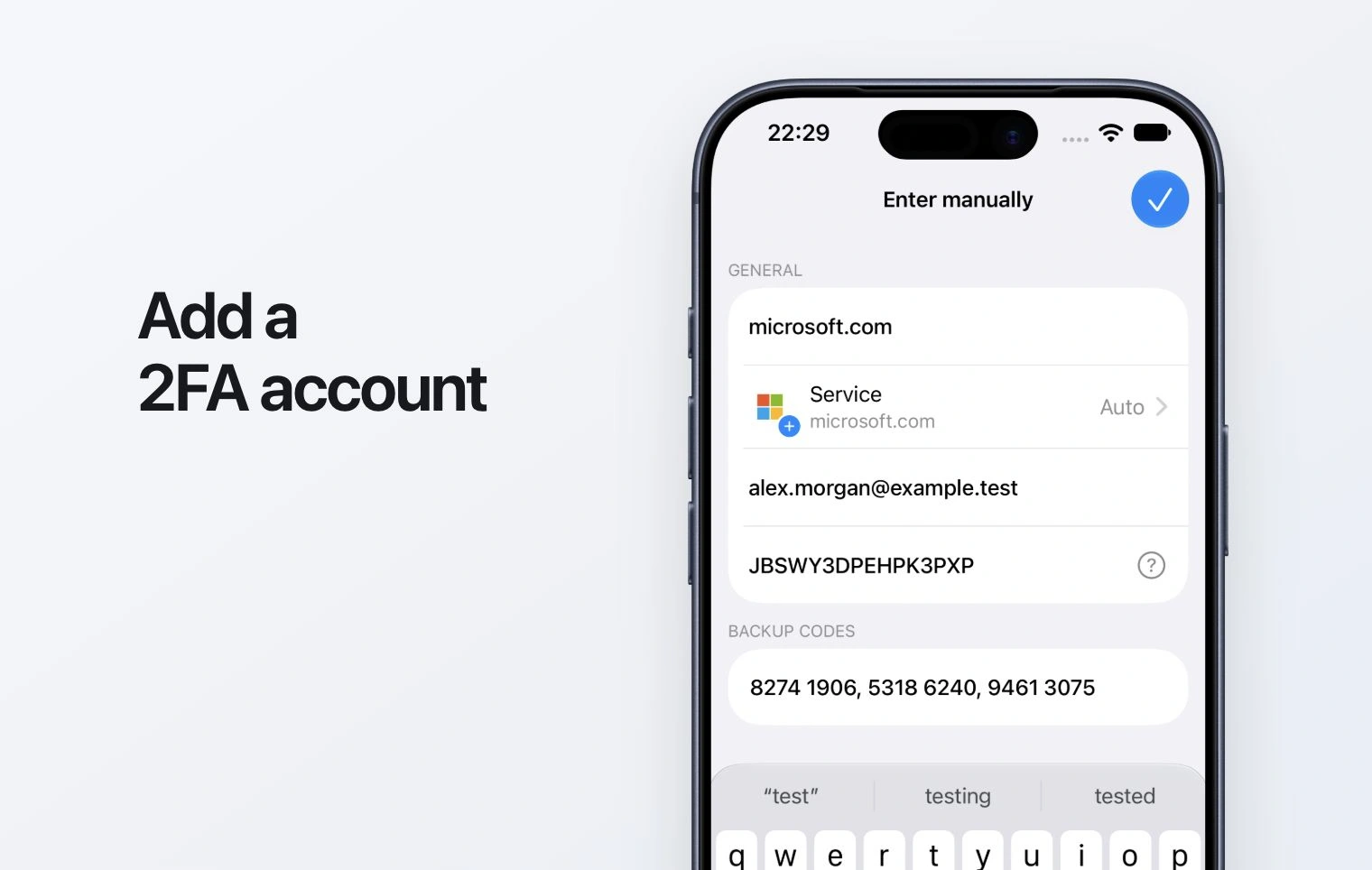
- In Authenticator, use the add-account control. Scan the setup QR code, or choose manual entry and enter the setup key.
- Check the service and account name so you can recognize this entry later.
- Enter the current code in the service’s setup screen to finish connecting the account.
Keep a way back in
Save any recovery codes supplied by the service somewhere you can access independently of this app. A setup key or export QR can give access to future codes: do not send it to support or share it in a screenshot.
If setup does not finish
Use the setup QR or key from the account’s own security settings, rather than a sign-in QR for another purpose. If a code is rejected, check the selected account and wait for a fresh code before retrying.