Check the account and timer
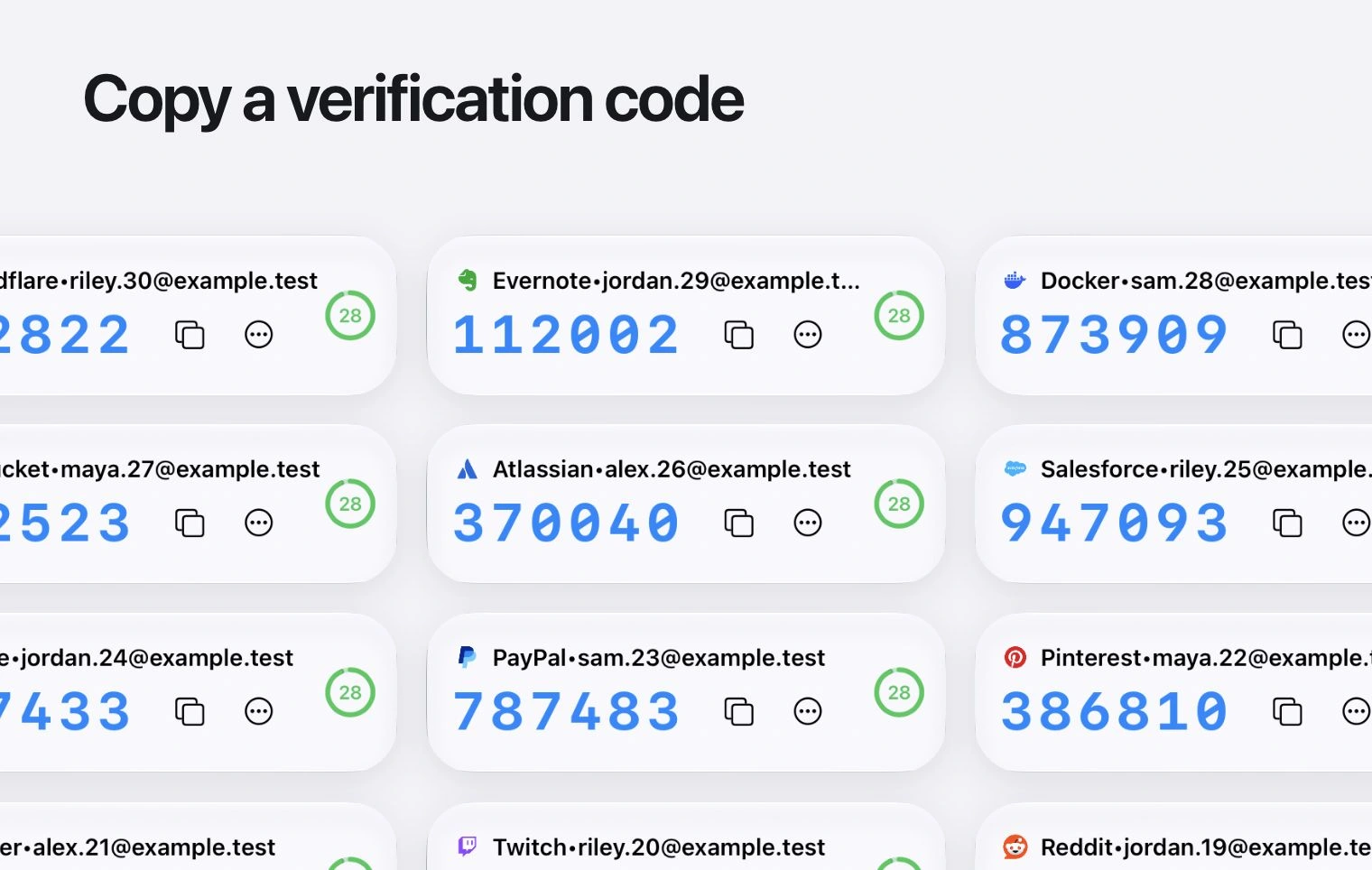
- Confirm that the code belongs to the same service and account you are signing in to.
- If the countdown is nearly finished, wait for the next code and enter it promptly.
- Check that you copied the complete code without extra spaces.
- Check that your device’s date, time and time zone are set correctly; automatic time is usually the simplest option.
Think about recent changes
If you recently replaced a phone, restored a backup or reset two-factor authentication in the service, check that this entry is still the one connected to the account. An old setup key can continue showing codes that the service no longer accepts.
Use the service’s recovery route
If you cannot generate an accepted code, use the service’s recovery codes or account recovery process. Avoid repeatedly submitting codes when the service is rate-limiting attempts.
Ask for help without sharing secrets
Contact support with your device, operating system, app version and the error text. Do not send setup keys, export QR codes, passwords or live verification codes.