
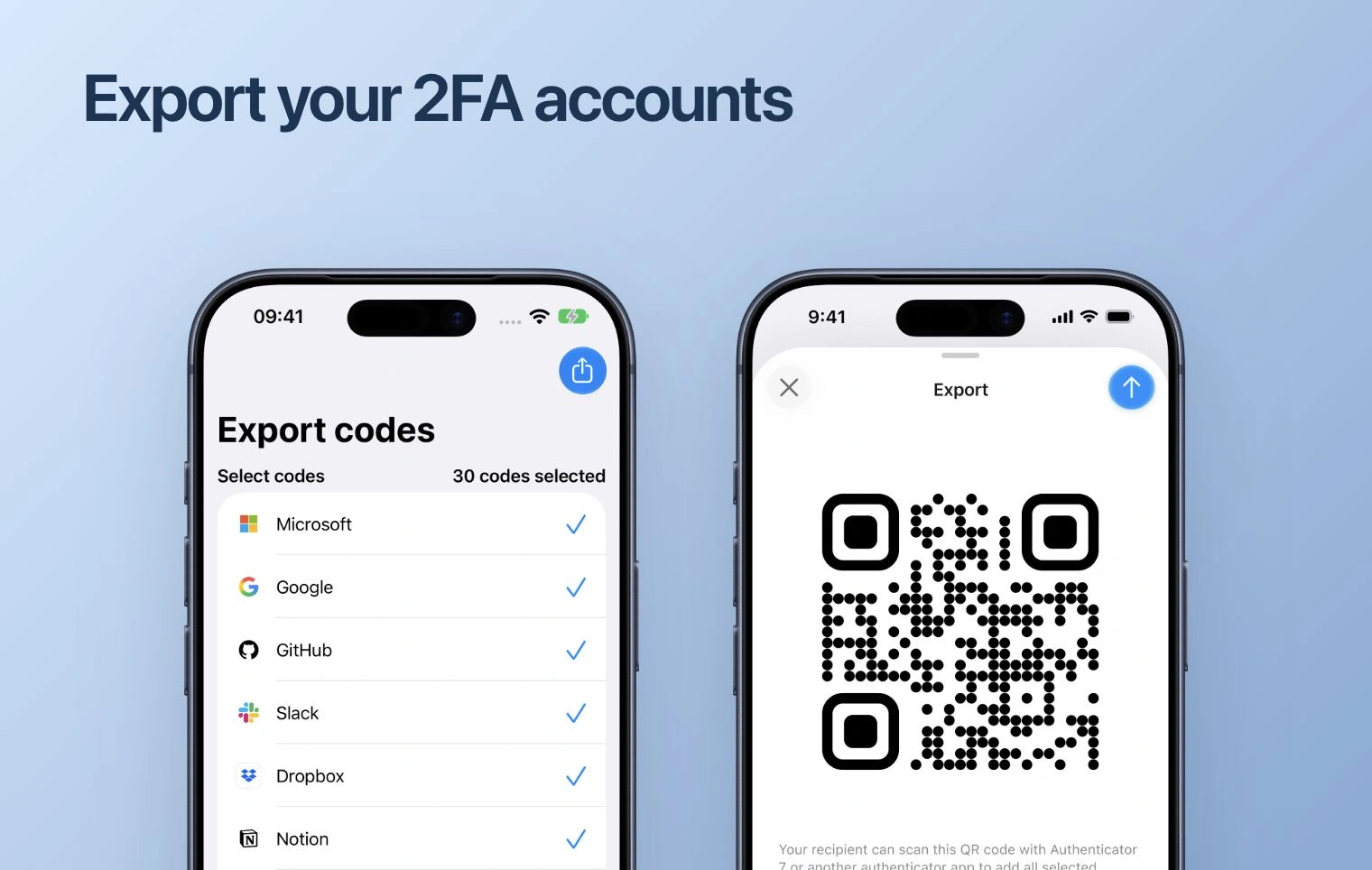
Prepare on the old phone
- Open the app and check which accounts you need to move.
- Review the backup or export options available in your app version. Complete the backup or export before changing devices.
- Keep the recovery codes issued by your services available during the move.
Restore or add on the new phone
Install Authenticator on the new phone. Use the restore or import method that matches the backup or export you created. An Apple iCloud backup and an Android backup are different routes; do not assume they are interchangeable.
If you cannot use a compatible import, open each service’s security settings while you still have access. Follow its process to replace or add an authenticator.
Verify before removing anything
- Check that the expected accounts appear on the new phone.
- Try signing in to an important service with a code from the new phone.
- Repeat for your other important accounts before erasing the old phone or deleting its app.
If the old phone is already gone
Use an existing compatible backup or the service’s recovery codes. If neither is available, follow that service’s account recovery process. Purchasing a subscription cannot recreate a missing setup key.