Check the backup settings
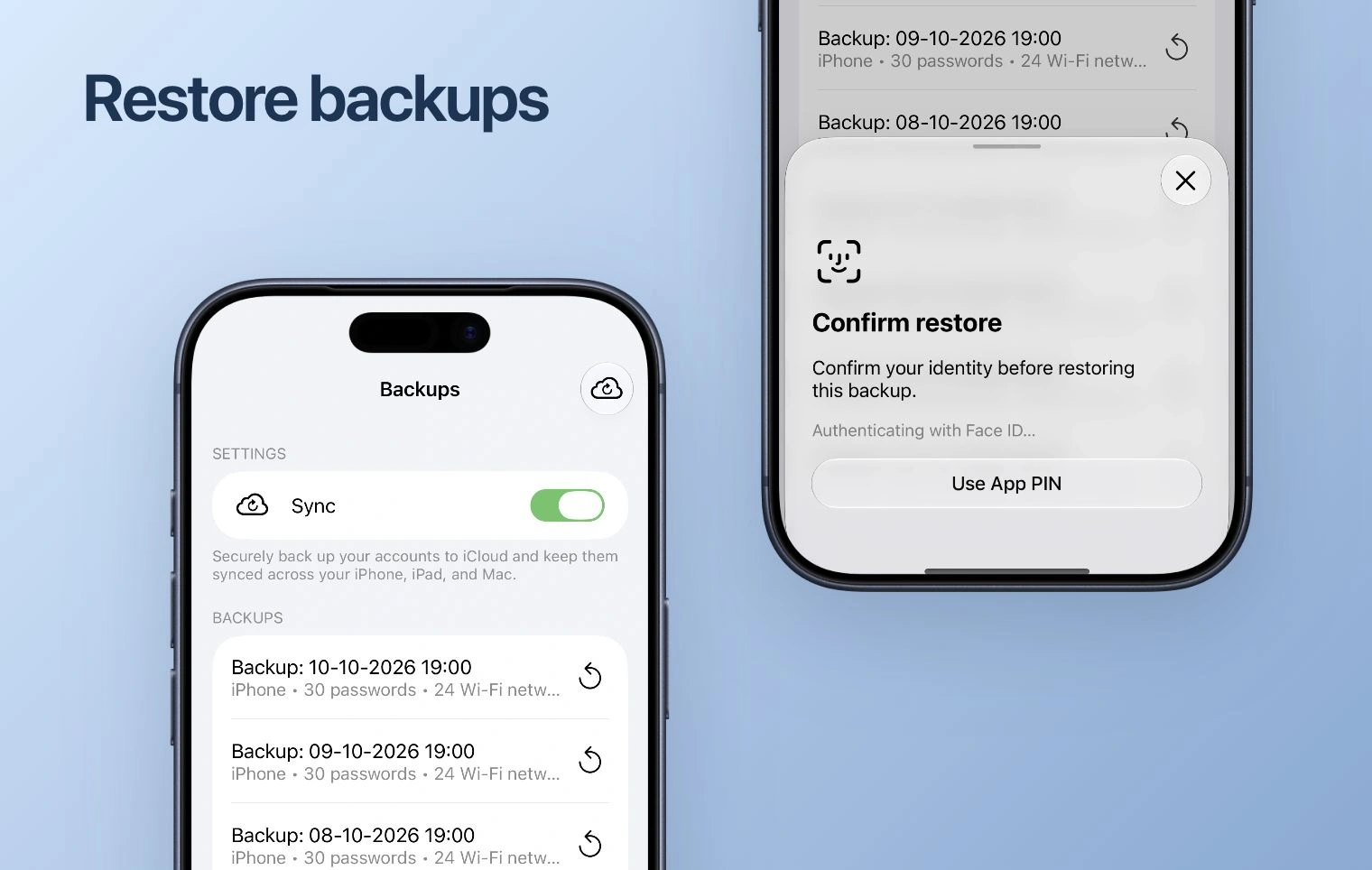
Open the app’s Sync & Backup or Backups area. The Apple interface includes an iCloud synchronization control and dated backup entries. Review the setting and the available backup dates; do not treat an empty list as proof of a successful backup.
Choose a restore point
- Check that you are using the intended Apple account and that iCloud is available on the device.
- Open the backup list and compare the dates before selecting an entry.
- Read the confirmation shown by the app before restoring. Keep another working device available where possible.
- After restoring, check the account list and test a sign-in with a current code.
When using Android or Windows
This is the Apple backup route. For Google Play devices, follow the Android backup instructions. Do not assume an iCloud backup can be restored by a different platform. Windows installation and available transfer controls are described separately.
Backup is separate from billing
A website subscription and a saved backup serve different purposes. Signing in to the purchase account or restoring a store purchase is not evidence that your code data has been recovered.