
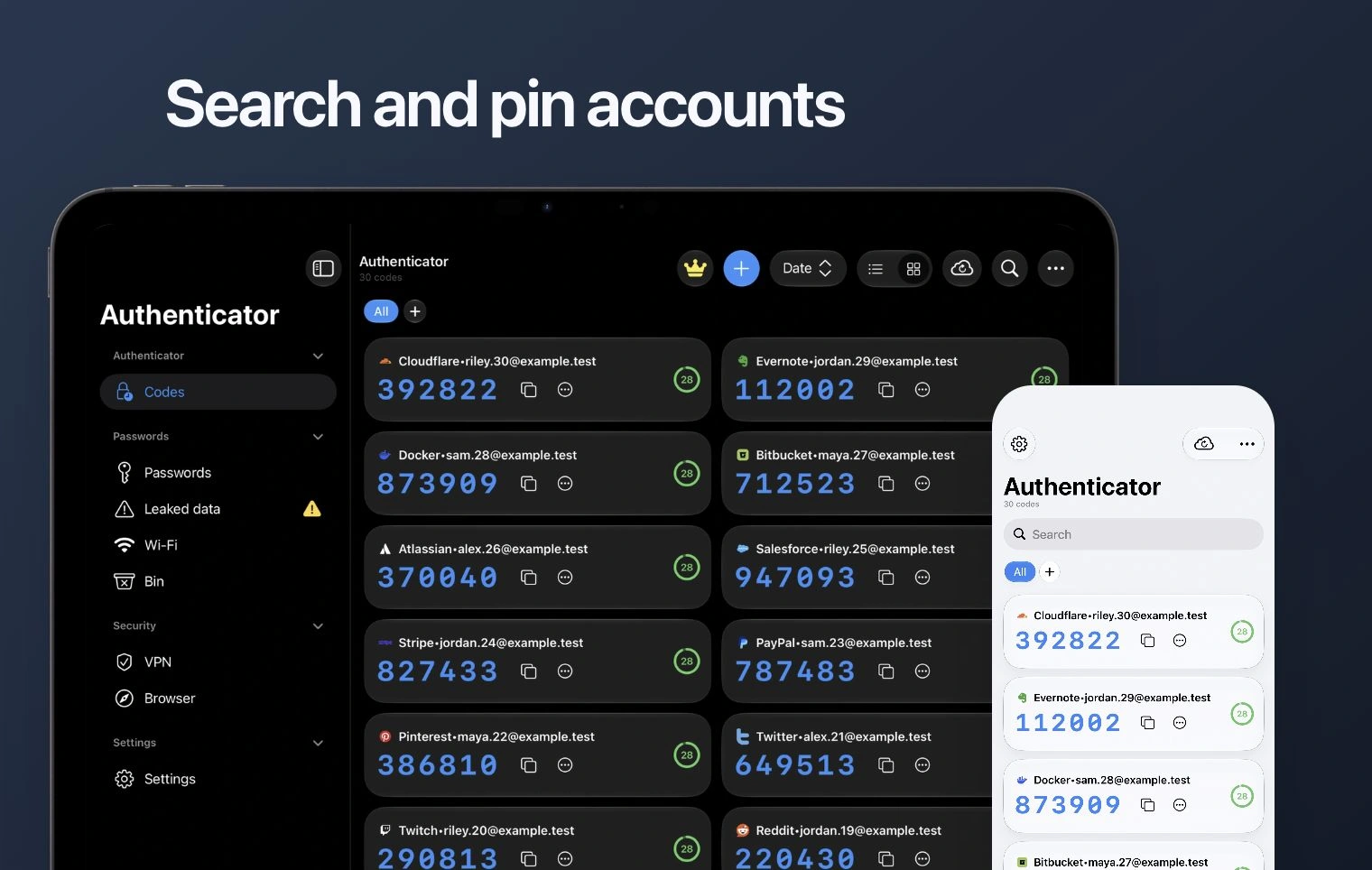
Check the current view
- Open Codes and switch the folder or category filter to All.
- Clear the search text and look for the service and account label.
- If the app supports Bin for the item type you removed, inspect it without deleting other entries. Do not assume every platform keeps deleted codes in Bin.
Check what changed
Confirm that you opened the right Authenticator app on the intended device. Did you recently reinstall, clear app storage, reset the phone, restore an older backup or switch platforms? Keep any other device that still shows working codes. Signing into the purchase website or restoring Premium does not recreate missing setup keys.
Look for an existing backup
Use the Android backup guide or the Apple backup guide. Check the cloud account, backup date and contents. Preserve current entries before a restore, particularly on Android where an older backup can replace the current code list. Do not create an empty replacement backup while looking for the original.
Recover through a working device or service
If another device still has the entries, use a supported transfer route. Otherwise use the service’s saved recovery codes or another configured sign-in method, then replace its authenticator setup. If none remains, use that service’s account-recovery process. Lost-phone recovery.
Contact support
Include the device, app version, when entries disappeared and any error text. Explain whether another device or a dated backup remains available. Do not send secrets or erase a working installation while investigating. Contact support.