
Check the source app’s export options
Keep the old authenticator installed and working. Check its official export instructions. Some apps export transfer QR codes, some export files and some do not offer portable exports. A cloud sign-in, device backup or password-protected archive is not automatically an import format for Authenticator.
Transfer from Google Authenticator
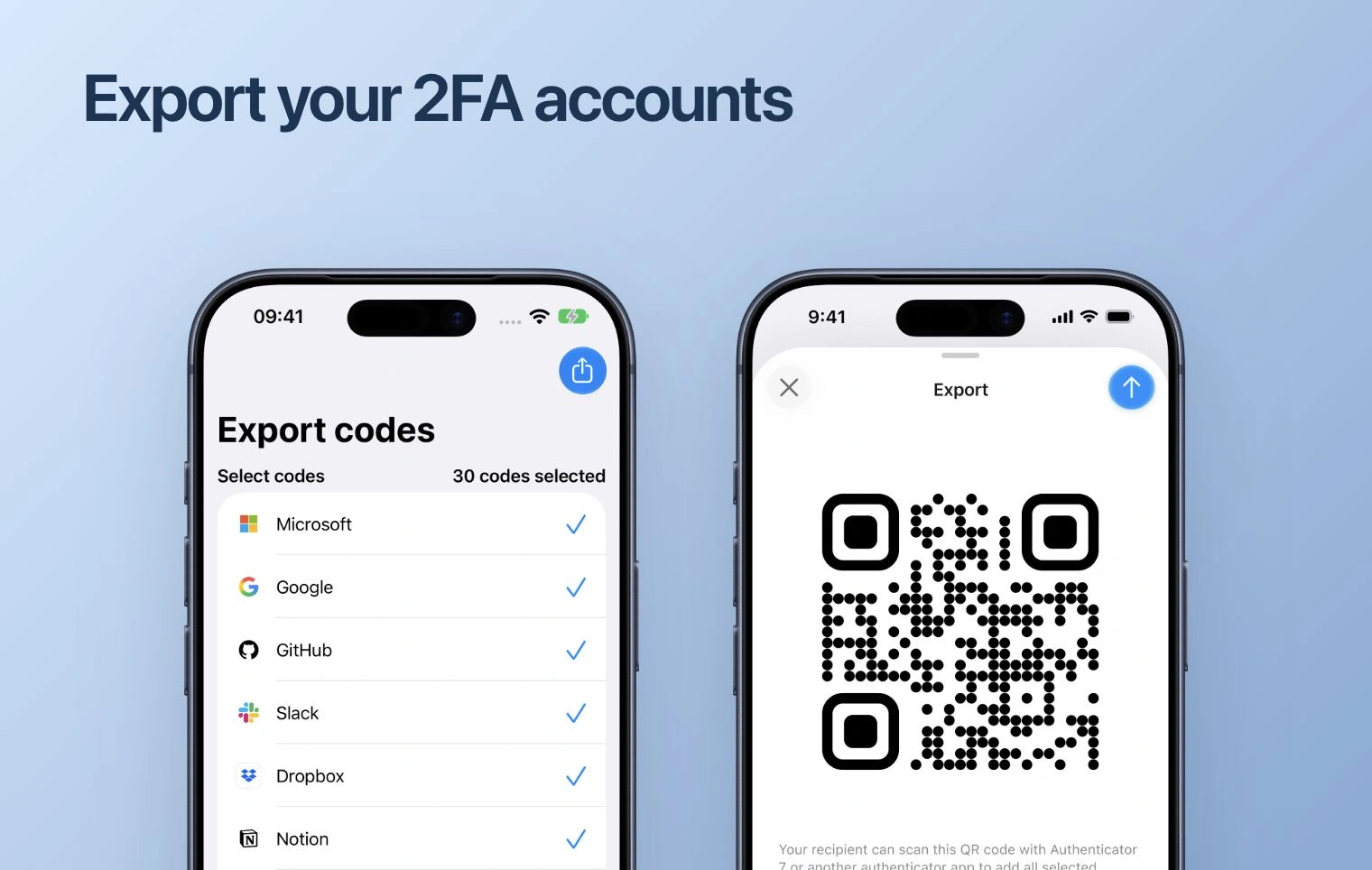
- On the old device, open Google Authenticator and choose Menu → Transfer codes → Export codes.
- Unlock the device, select the accounts and continue to display the transfer QR code or codes.
- In Authenticator, open the add-account scanner and scan the transfer QR. Review the accounts it recognizes and complete the import.
- If the export contains multiple QR codes, process each one and check the final account list.
Use this route only when your installed Authenticator version recognizes the transfer QR. The inspected iPhone, Mac and Android implementations include Google-style transfer QR handling. Format and token-parameter support still depends on your app version; verify every important sign-in.
For QR images and export files
On Apple versions that offer image or CSV import, use the corresponding import option and review the recognized accounts. A CSV import option does not imply compatibility with every authenticator’s CSV layout. Encrypted exports need explicit support; do not rename an archive or upload it to an online converter.
If the format is rejected or accounts are missing, keep the old app and use the service-by-service setup route instead. Do not send the export to support.
When the old app cannot export
Sign in to each service while the old authenticator still works. Follow its authenticator replacement process and connect the new setup QR or key in Authenticator. Confirm the new code in the service and preserve updated recovery codes.
Verify before deleting the old app
Check account labels and test a sign-in using the imported code. Matching account names alone are not enough. Keep a backup route on the new platform before removing the old installation. Store or dispose of temporary secret-bearing exports securely after verifying the transfer.