Camera access on iPhone or iPad
- Open system Settings → Privacy & Security → Camera.
- Allow camera access for Authenticator, then return to its scanner.
- If the app is not listed, open the scanner to request permission. A managed device or parental restriction may require help from its administrator.
Camera access on Android
- Open system Settings → Apps → Authenticator → Permissions → Camera.
- Choose Allow only while using the app, then reopen the scanner.
- If Android has a system-wide Camera access switch, make sure it is on. Menu names differ by manufacturer.
When the QR is not recognized
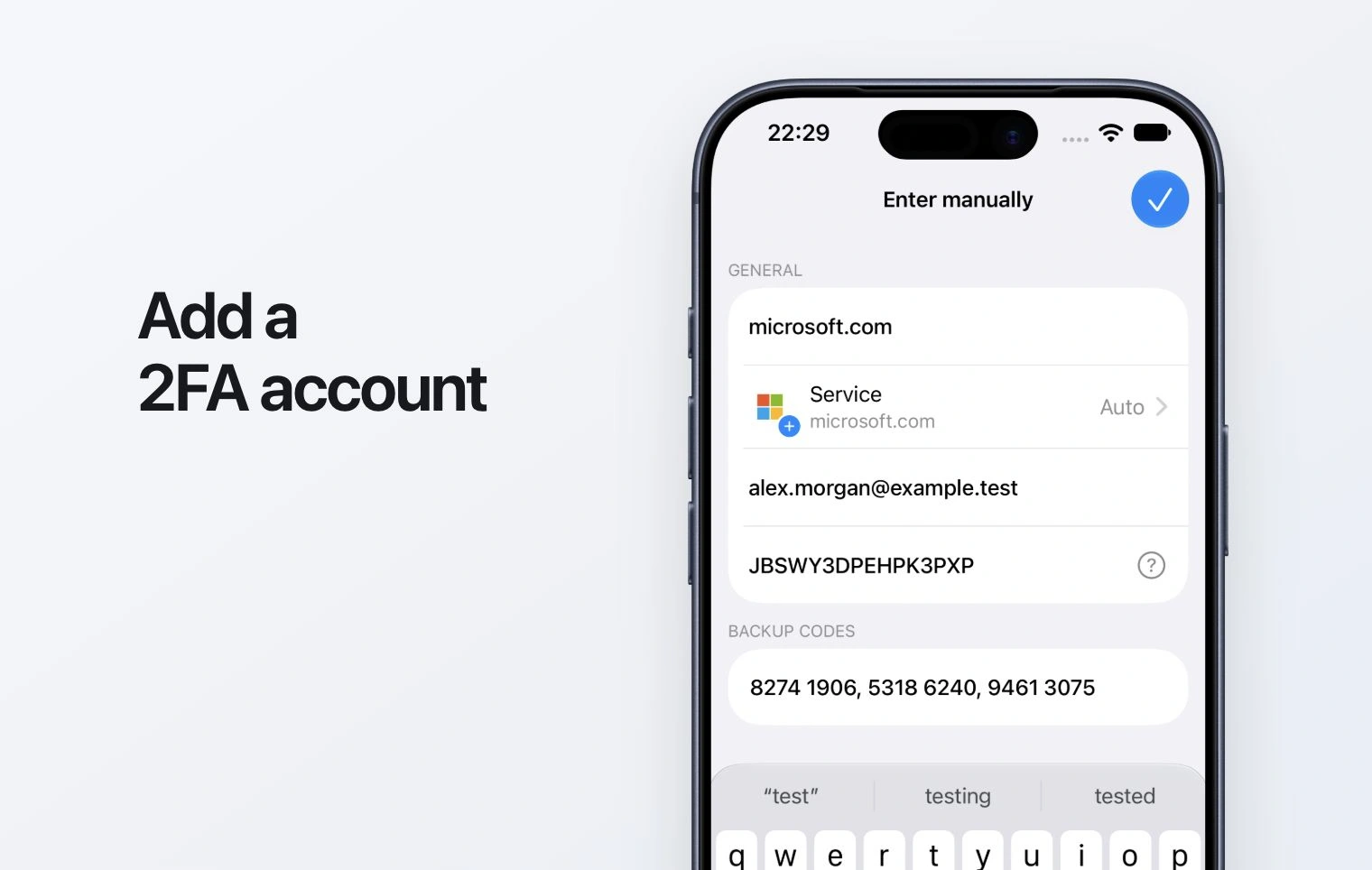
Show the full QR with its border, remove glare and keep it in focus. Use a service’s authenticator setup QR or a supported account-transfer QR. Login approval, passkey and payment QR codes are different. On the same phone, use the setup key or the image-import option offered by your version. Never upload a setup QR to an online decoder.
When only some accounts appear
- Keep the old app and export available. Compare the original account list with the destination.
- Check whether the source produced multiple QR codes and process every part.
- Review the import selection: an entry may have been left unselected or already present. Match account labels before adding duplicates.
- Test a sign-in for each important account. If a format or account remains unsupported, reconnect it in the service while you still have a working sign-in method.
A different code type, length or refresh period may not be supported by your app version. If the imported account generates rejected codes, keep the working app and contact support; repeatedly scanning the same export will not resolve a format limitation.
Ask for help safely
Send your platform, app version, source app name, number of expected/imported entries and the error text. Do not attach export files, setup QR images, keys, passwords or live codes. Contact support.