Install and open the app
Choose the Mac download. For a DMG installation, open the downloaded file, drag the app to Applications and launch it from there.
Find the right account
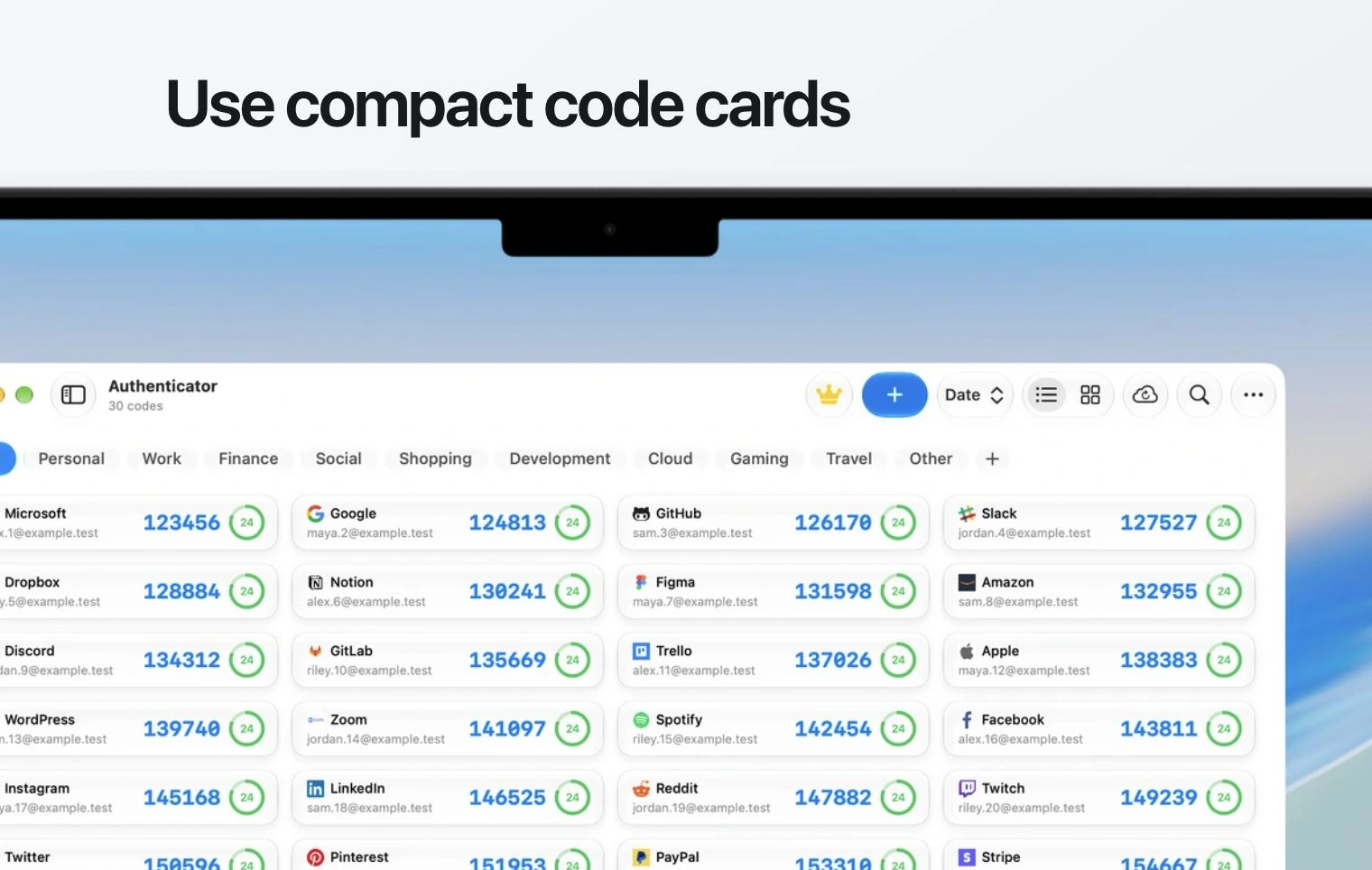
- Open the Codes section. Use the search or folders available in your app to find the service.
- Check the account label, especially if you have more than one account for the same service.
- Use the copy control beside the current code.
- Return to the service and paste the code into its verification field.
If the account is missing
Check the transfer or synchronization options you previously configured. Installing the Mac app does not by itself demonstrate that every account from another device is present. Keep the working device until you have checked the account list.
If the code is rejected
Wait for a fresh code and check the Mac’s date and time settings. Use the account recovery process provided by the service if you no longer have access to its authenticator entry.