
Choose the installer
Open the Windows download page. Choose x64 for a 64-bit Intel or AMD PC, or ARM64 for a Windows-on-Arm PC. The x86 option is also listed. If you are unsure, check System type in Windows Settings before choosing.
Install the app
- Download the matching installer from the official download page.
- Open your browser’s Downloads list or the Downloads folder and locate the file.
- Open the installer and follow the instructions shown on your PC.
- Launch Authenticator after installation.
Get your accounts ready
Add an account using the setup method offered by the app and the service you want to protect. If you are moving existing accounts, check compatible import or transfer options before removing the old app.
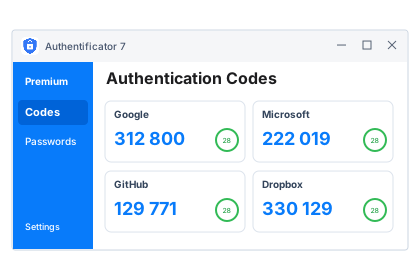
Use a code to sign in
Find the matching account, use its current verification code and enter it in the service that requested it. Your website purchase account and your saved authenticator entries are separate concerns; check that the entries are present.