Prepare the old phone
Keep the Android app working. List the accounts you need and preserve each service’s recovery codes. A Google Drive backup cannot be opened as an iCloud backup.
Display the Android export
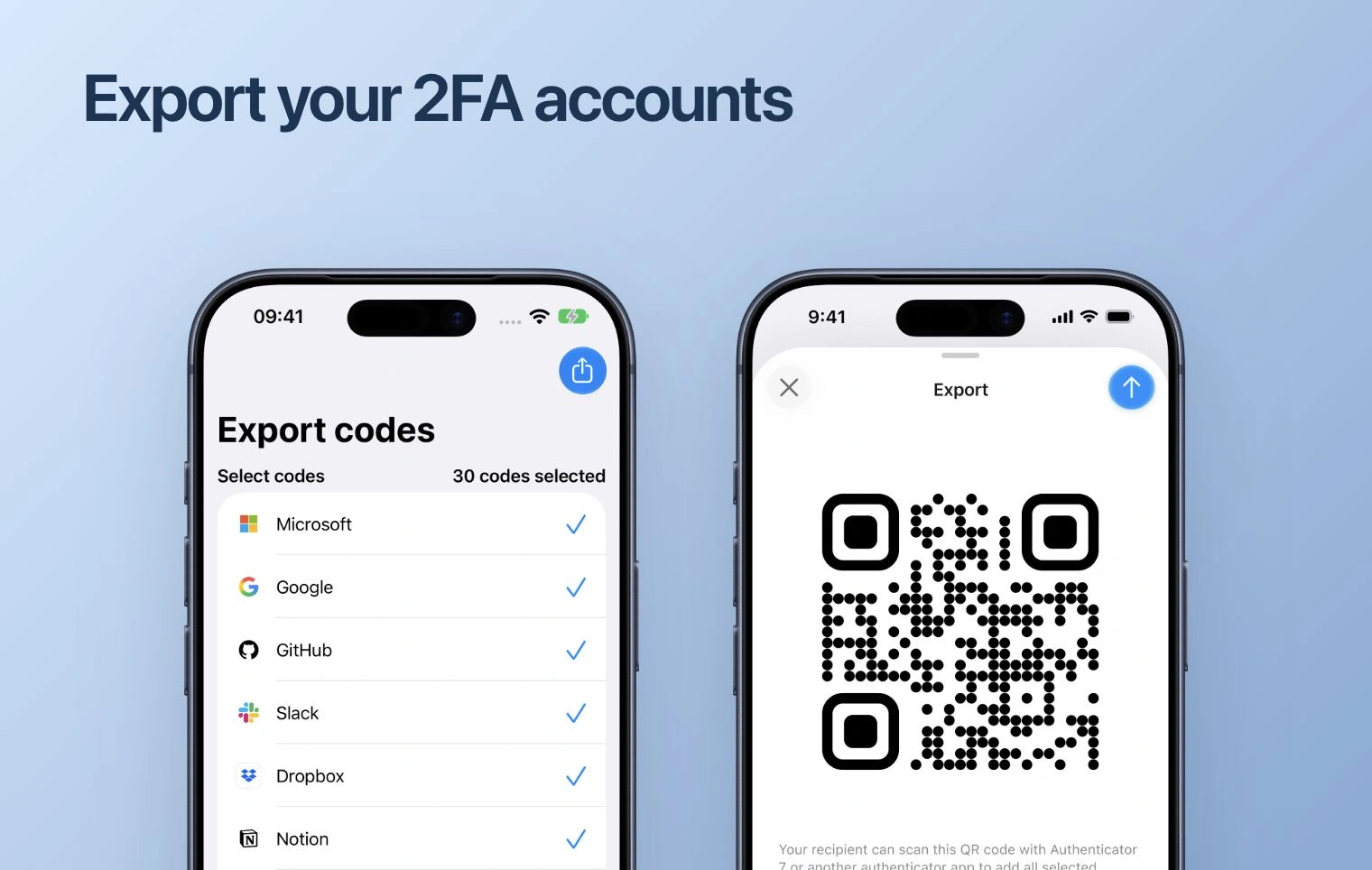
- In Codes, open the account-selection or export action and select the entries to transfer.
- Open the export QR screen. Use its Google-compatible transfer QR when that choice is offered.
- Keep every QR fully visible. Do not share screenshots of the export or send them to support.
Import on iPhone
- Open Authenticator on iPhone, tap + and open the QR scanner.
- Scan the export shown on Android. Review the recognized entries, select the intended accounts and complete the import.
- If the source offers multiple QR codes, repeat for each and compare the final account list.
The Apple import flow accepts supported Google-style transfer QR codes and OTP URI lists. If a particular export is rejected, do not convert it on a public website or assume that changing its file extension will help.
Handle missing entries
Keep both phones and compare service names and account labels. Use the partial-import checks before retrying. If the source format is unsupported, connect each service again while the old authenticator still works.
Check and back up
Test important sign-ins using the iPhone codes, then review Apple backup settings. Codes are separate from store or website purchase access. Keep the Android device until the transfer and recovery route are verified.