
Keep the iPhone available
Keep Authenticator installed and working on the iPhone. Make a list of the accounts to move and keep service recovery codes. Code transfer does not automatically transfer saved passwords, Wi-Fi entries, folders or a subscription.
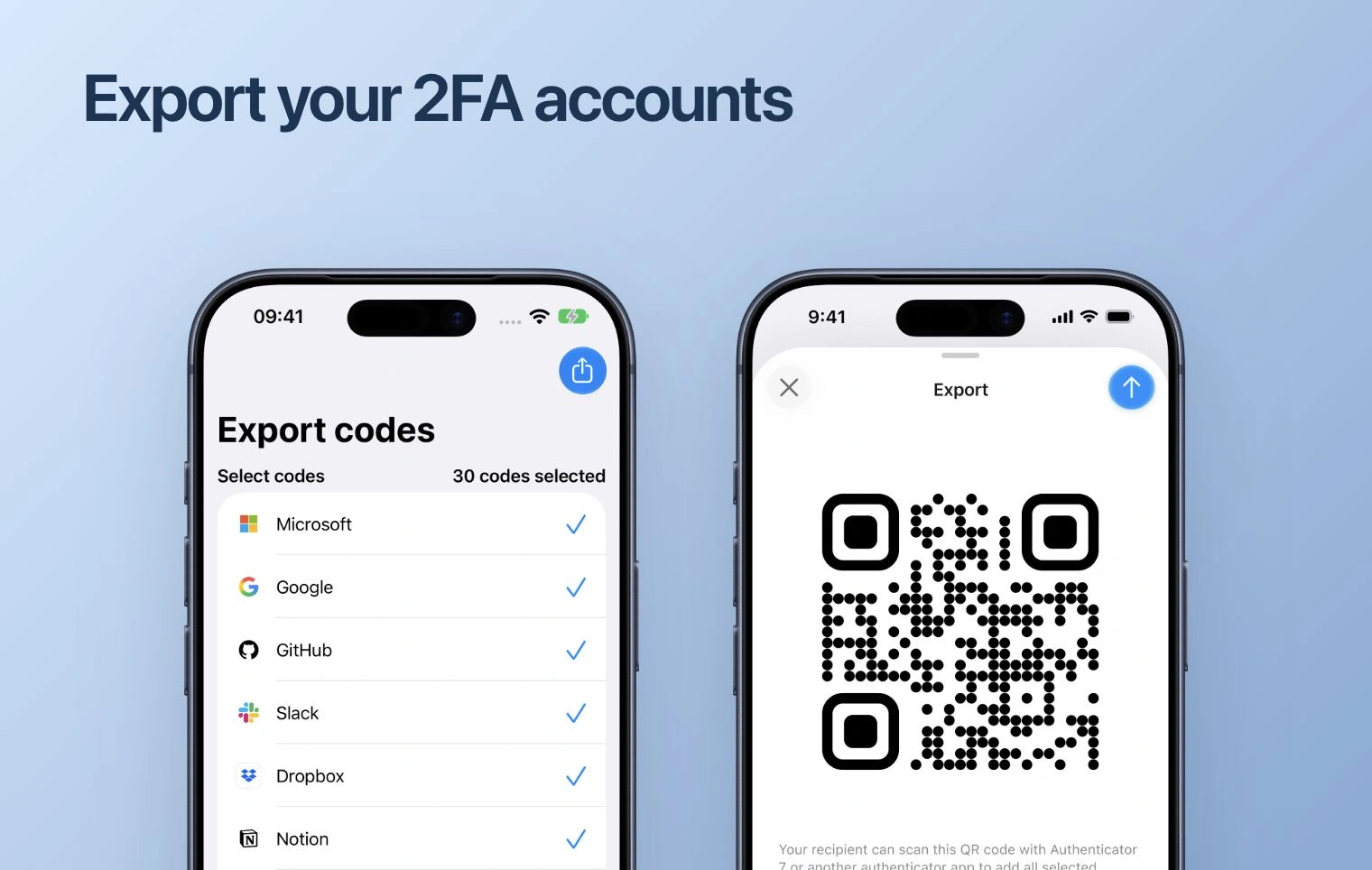
Export the codes on iPhone
- Open Codes and use the account-selection or export action. Select the entries to move.
- Open the export QR code. A single-account QR and a multi-account transfer QR can use different formats. Keep the entire QR visible.
- Keep this screen private. Anyone who receives a setup or export QR may be able to generate future codes.
Import on Android
- In Authenticator on Android, open + and the QR scanner.
- Scan the export QR shown on the iPhone. Review the recognized accounts and select the entries to import when a selection screen appears.
- Complete the import. If the source displays several QR codes, scan each one and compare the final account list with your original list.
Use the standard code-export QR route. iCloud backup files and arbitrary CSV files are not Android import formats. If your app version rejects the export, keep the iPhone and follow the service-by-service route below.
Verify or reconnect
Test a sign-in to every important service using the Android entry. If accounts are missing or codes are rejected, keep the old entries. Sign in to the service with your working method, replace or add its authenticator, and connect the new setup key on Android.
Finish on the new phone
Check Android backup settings after the codes work. Only then consider removing entries from the old device. Changing a service’s setup key can invalidate codes on the old phone.